Publishing
From a checked draft to App Store Connect, without copy and paste
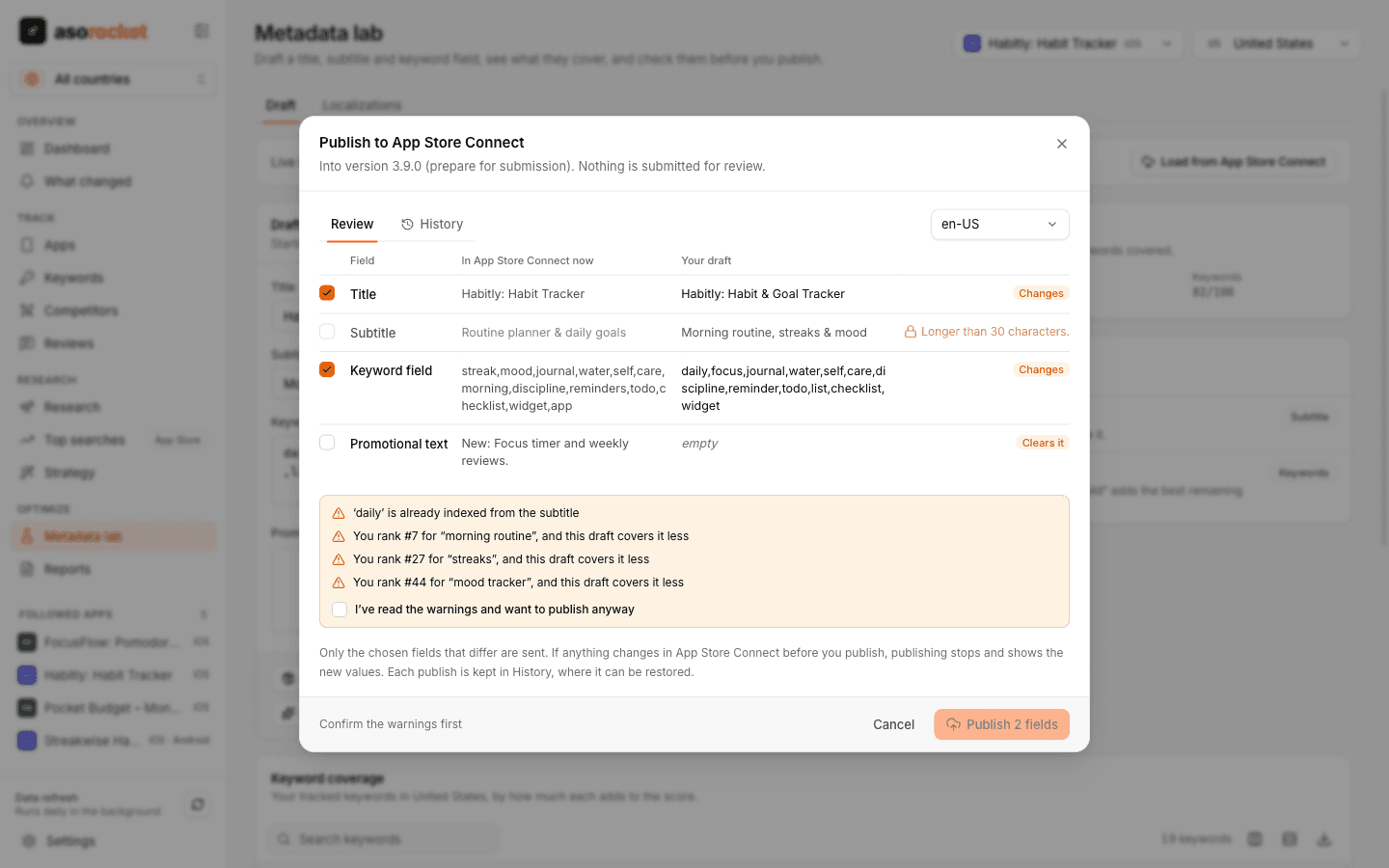
When a draft passes the pressure test, publish it into the version you’re preparing. A review screen shows each field as it is in App Store Connect now, next to your draft, and only the fields you tick that changed are sent.
What you get
What’s there now, next to your draft
The review reads App Store Connect fresh and shows every field side by side: whether it changes, stays the same, or can’t be published, and why.
Checks before anything is sent
Errors from the pressure test block publishing. Warnings, such as keywords you rank for that a draft would stop covering, must be confirmed first.
Only what changed
Tick the fields to publish. A field that would be emptied starts unticked and is labelled “Clears it”, so an old draft can’t wipe your promotional text by accident.
Into the right place
Title and subtitle go to the app information being prepared, the keyword field to the version being prepared, and promotional text there or to the live version. Nothing is submitted for review.
Never over someone else’s edit
If a field changed in App Store Connect after you opened the review, nothing is sent and the new values are shown. Each field is read back after it is sent.
History and restore
Every publish is kept with the values before and after. Restore loads the earlier values back into the lab, ready to publish again.
What you need: An App Store Connect API key with the Admin or App Manager role.
Good to know
On Google Play
Google Play listings are published through a separate connection, with its own review screen. See Publish to Google Play.
Related guides
Metadata · 2 min read
How to use the App Store keyword field
Formatting, word choice and the common mistakes that waste the 100 hidden characters Apple gives you.
Metadata · 2 min read
App Store title and subtitle: limits and how to write them
Thirty characters each. How to fit a brand, a keyword and a reason to download.
Metadata · 2 min read
ASO checklist: what to check before you submit an App Store update
Twenty quick checks for your name, subtitle, keyword field and screenshots before you press Submit.
More features
All featuresKeyword rank tracking
Daily positions for every keyword in the App Store’s top 200 and Google Play’s top 30, with changes and history.
Learn moreKeyword research
Score a term, see who ranks, and check up to 1,000 keywords in one background run.
Learn moreMetadata lab
A live ASO score as you type, an automatic keyword field, and a pressure test before you ship.
Learn moreLocalization planner
Find the empty keyword fields in the extra languages each storefront indexes, and fill them.
Learn moreStart with your own app, today
Download asorocket, pick your markets and find your app. You will be tracking your first keywords in about two minutes.
macOS · Windows · Linux